 Search Tips
How can I Filter the Activities (events) logged by my system?
 ).
).On the website:
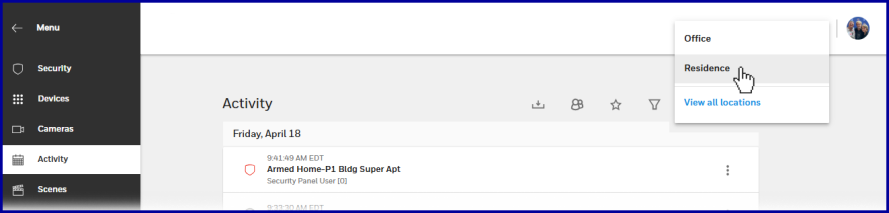
As always, in accounts with more than one Location: Before you do anything else, select which Location you're interested in:
-
Click Activity on the menu at far left. Near the upper-right corner of the page, find these controls:

- The .png) button offers the option of exporting Activity logs as a PDF file. There are a variety of filters for the types of events you're interested in.
button offers the option of exporting Activity logs as a PDF file. There are a variety of filters for the types of events you're interested in.
- The  button displays ‘Admin Logs’, a history of logins and logouts. (When Admin Logs are displayed, this button toggles to ‘show live activities’, returning you to the original view of all events).
- The button displays only events that have been marked as Favorites.
- The  button.png) button displays the filtering options that are shown below.
button displays the filtering options that are shown below.
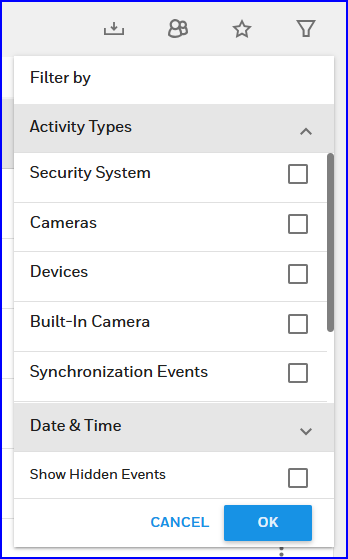
 .
.On the iOS app:
If Activity isn't one of the navigation options at the bottom of the app screen, click  .
.
All of the filtering options described above are condensed into a list offered by the button.
On the Android app:
Touch Activity on the navigation bar just under the Location selection:
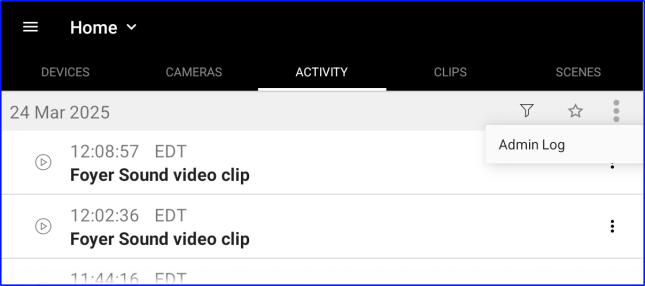
All of the filtering options described above are available with or choose Favorites with the button or click Admin Log.