 Search Tips
What does the Duress feature do?
IMPORTANT: Your system must be connected to a central station for the Duress function to work.
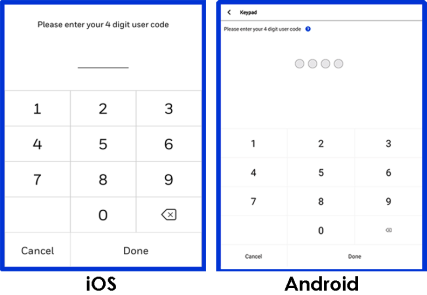
A Duress alarm can be triggered from the app's on-screen keypad.
To trigger the Duress function
- With the system armed: Press Disarm on the Home screen. When the on-screen keypad appears, enter your system's Duress code.
- With the system not armed: On the Home screen, select either Arm Away or Arm Home. When the app requests your user code, enter the system's Duress code.
In either situation, the system appears to disarm normally; there is no audible alarm and no indication on the panel or the Remote Service app. However, a Duress code is sent to your central monitoring station. Duress alarms appear as normal "Disarmed" events in the Remote Service's Events log.
IMPORTANT:
- Your system must be connected to a central station for the Duress function to work.
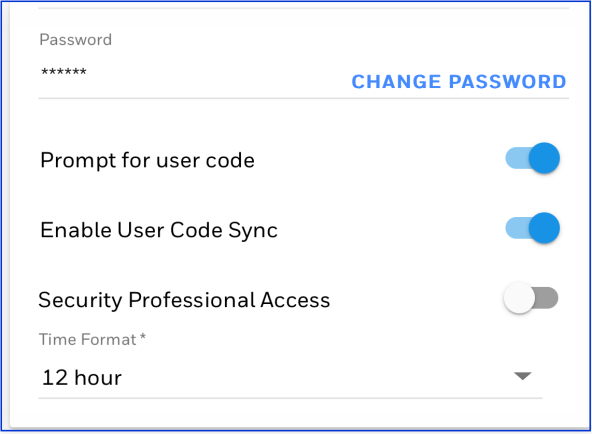
- To use Duress with the system armed, the Remote Service app on your device must be set to Prompt for User Code (see below for this setting).
Setting the iOS app to "Prompt for User Code"
- Touch More at the bottom of the screen and then select My Profile.
- Slide the switch to the right as seen here.
Setting the Android app to "Prompt for User Code"
- Touch
 at top right and then select My Profile
 - Slide the switch to the right; the layout of the My Profile screen is similar to the image above.