 Search Tips
How do I set (or change) my Time Zone?
You must be an Administrator or the Master User to do this.
On the website:
-
On the left side of the screen, click Locations.
-
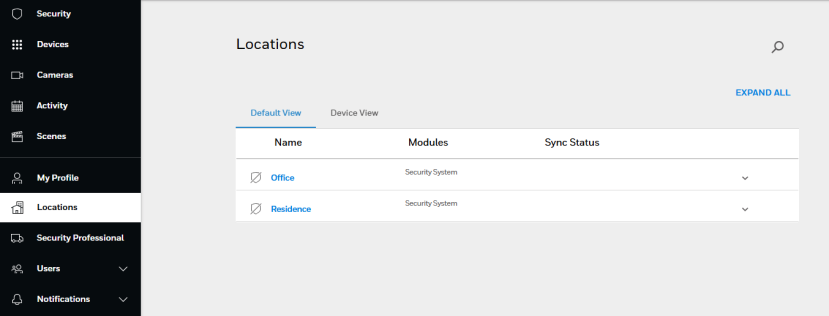
Your account's Location information is displayed in the center of the screen. If you account has more than one Location, they appear in a list.
-
Click the ˅ button on the right to expand the information displayed for your location.
-
Next, click
 .
. -
In the expanded display, click the Time Zone dropdown:
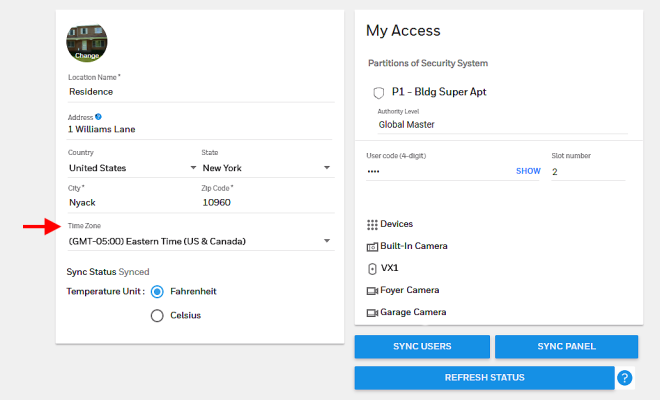
- Use the scrolling list to select the desired time zone.
-
Click SAVE.
On iOS:
-
Touch More

-
Touch My Location. The app opens Settings for the Location currently active.
-
Click the Time Zone dropdown
- Use the scrolling list to select the desired time zone.
-
Click SAVE .
On Android:
If your system has more than one Location, choose the Location where you'd like to make the change before continuing with the steps below.
-
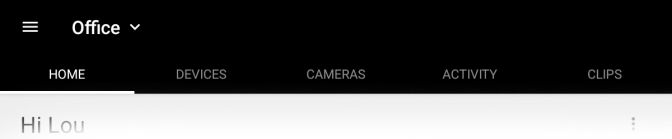
If your account has more than one Location, select the one you wish to work with. Touch the ˅ button next to the currently active location:
-
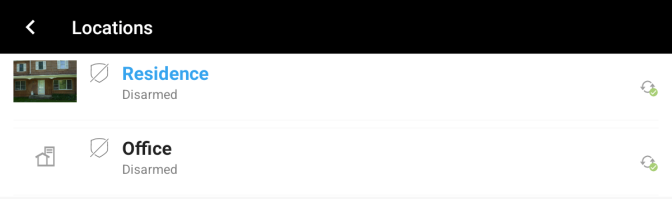
Select the location you want to work with and then press <
-
Next, touch
 , then Settings
 -
Touch Locations
-
Select My Location,
-
Touch Time Zone >
- Use the scrolling list to select the desired time zone.
-
Click SAVE