 Search Tips
How do I change language settings?
In addition to English, Remote Services is available in these languages:
-
French
-
Spanish
Using the service in these languages requires the correct settings in two places:
-
Your browser. This controls the appearance of the
-
Your Profile on the
Until other languages are available, choosing any other language in these settings will cause the Remote Services interface and related communications to appear in English.
Browser settings
Locate your browser's settings. Access to these controls is similar in most popular browsers; the example shown here pictures the popular Google Chrome browser in its current version as of Spring 2025.
Click the  button at upper right on the screen. (If you mouse-hover over the button, you'll see that it's labeled "Customize and control Google Chrome".)
- In the dropdown menu, select
 Settings (Settings is probably near the bottom of the dropdown menu)
- On the Settings screen, in the menu at left, choose

- In the Preferred languages screen, click the _button to make your setting:
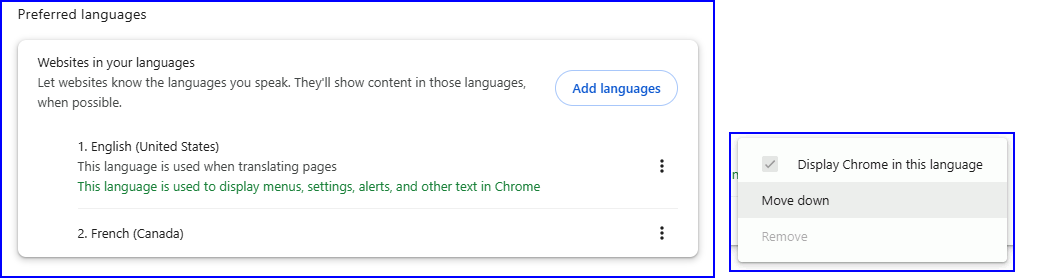
-
Then, click the
 button.
Settings in your Remote Services Profile
1. Log in to the Remote Services website as the System Administrator (in some systems, known as the Master User)
2. On the left side of the screen, select My Profile
3. Click the current Notification Language setting. On the dropdown menu, select your preferred language for emails and other communications from Remote Services .
4. Click SAVE and confirm.
On mobile devices:
The Remote Services app's display language is dictated by your device's language settings. If your device is set to a language other than the app's available languages, the app's user interface will be displayed in English.