 Search Tips
How do I change Location settings in the iOS app?
You must be signed into the app as an Administrator to modify any of these settings.
Display order:
-
Log in to the app and touch

-
Select Locations. (If you want to change the order in which the Locations are displayed, touch the
 button at upper right. To keep the app's default order of Locations, touch Use Auto Order. To arrange them in your own preferred order, touch Configure Order.)
Press DONE at upper left to return to the previous screen.
Changing Location settings:
As we've said elsewhere: Before you do anything else, select the location whose system you want to work with.
-
Log in to the app and touch More.
-
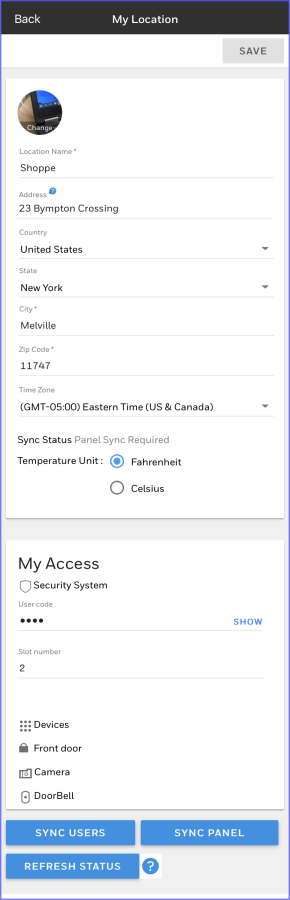
Select My Location. A simplified version of the settings available on the website appears (on most devices, you'll have to scroll down to see the whole thing):
-
At the top of the screen, touch the picture of the location to select a new image; choose from images saved on your device or take a new photo if the option is available.
-
Touch the Location Name, Address, City and
-
Use the dropdown menus for Country, State and Time Zone.
-
Sync Status shows the current status of data synchronization between the system control panel and
-
Touch Fahrenheit or Celsius to choose your preferred temperature format.
My Access:
-
If you wish to set a new User Code for yourself, touch the text button SHOW to display the current code, then enter a new 4- or 6-digit combination.
-
Slot number is display-only and cannot be edited. This number is assigned by your system panel and has no bearing on a user's privileges and permissions.
-
Below Slot Number, the Location's enabled services are displayed. (In the example shown here, Front door camera, built-in camera (on select security panels) and Wi-Fi doorbell. Your system will display the icons for its own configured services.)
Whatever you do, don't forget to touch SAVE at upper right after making any changes!
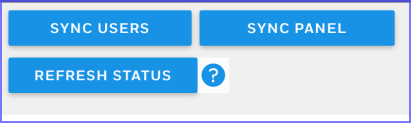
Sync and Refresh Status buttons
NOTES
-
If your system has a Sync Failure, synchronize it with
-
The buttons on your device or browser may differ slightly from those pictured here.
-
These buttons affect only the system currently selected on the browser or mobile device where you’re working. These options take less time than syncing with multiple systems.
User Sync is the process in which the Remote Service and your security system reconcile their data about:
-
Addition or deletion of Users
-
Changes in a User’s privileges/access
-
User codes being changed (this includes the Duress code)
Panel Sync is the process in which the Remote Service and your security system reconcile their data about:
-
The control panel itself
-
Sensors like smoke and carbon monoxide (CO) detectors, window/door sensors, flood sensors and single-purpose motion detectors (which are different from video cameras that perform motion detection)
-
Automation devices
The data exchanged enables the Remote Service to report device problems due to tampering, battery failure or hardware failure; this includes batteries running low in any of these devices.
Refresh Status initiates a new comparison of status information between your system panel and the