 Search Tips
How do I fix a problem signing in? (Recover user name/reset password)
Here's how to reset or recover your log-in credentials on the
Remote Service
website or our mobile apps.
The appearance of the user interface will vary slightly between the website and the apps, but the steps required are the same.
If you've forgotten your password:
1. Click Problems signing in?
2. Select Forgot your password. Enter your user name as requested and click NEXT.
3. Select your mobile number or email address to receive a recovery message. (Note that the display of your mobile number may be formatted like an email address, as seen in the top row below. Don't worry about that; it's part of our internal process.)
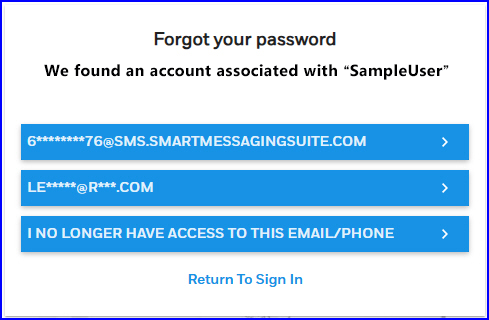
If you've provided an email or text message destination for the recovery message, a confirmation message appears.
4. Click OK. It can take up to 30 minutes to receive the message, but is usually faster.
5. Check your text messages or email for the password reset instructions.
6. Follow the steps in the email or text and log in.
6. Follow the steps in the email or text and log in.
If you clicked I NO LONGER HAVE ACCESS TO THIS EMAIL/PHONE, a message appears advising you to contact your security professional for help getting back into your Remote Services account.
Please scroll down to the bottom of this article for a look at the password requirements.
If you've forgotten your user name:
-
Click Problems signing in?
-
Select Forgot your username.
-
Enter the email address or mobile number associated with your account. If you choose the phone method, you'll need to select your mobile service provider.
-
Click
 . A confirmation message appears.
 -
Click OK. The response can take up to 30 minutes, but is often faster.
-
You will receive an email or text (SMS) message containing your user name.
-
Return to the Remote Services login page.
If you are signed in and want to change your password:
-
On the left side of the screen, click My Profile
-
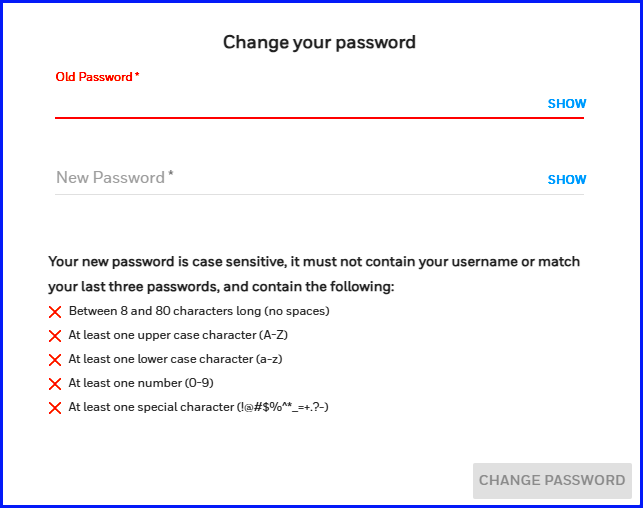
Click CHANGE PASSWORD. The form seen below appears:
-
First, click SHOW so you can see what you're doing
-
Enter your old password in the top field and a new password in the bottom one
-
Click CHANGE PASSWORD again
-
Click SAVE if prompted.