 Search Tips
What if the feature I want isn't at the bottom of the screen? (iOS Navigation Order)
You can choose which features appear on the navigation bar at the bottom of the screen and the order in which they appear.

Any of the features that don't fit on the navigation bar will appear at the top of the main settings screen seen below.
_415x832.png)
To arrange the icons on the navigation bar:
-
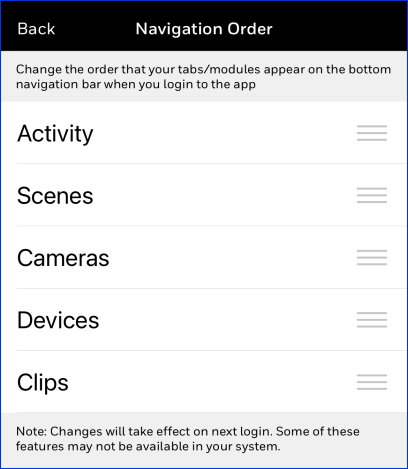
Select Settings and then Navigation Order
-
On the screen above, hold and drag each feature's
 _handle to arrange them in the order you want to see on the navigation bar.
 -
Touch Back a couple of times to return to the first screen.
When you return to the app's Home screen, the navigation bar is rearranged in your preferred order:

Notes
-
The Home
 button is always first at far left on the Navigation Bar.
 -
As it says on the Navigation Order screen itself, the changes you make here will take effect the next time you launch the app.
-
The navigation bar is not meant to appear on every screen, so if you don't see it while you're making certain other settings, don't worry about it.