 Search Tips
How do I set up Notifications on the Android app?
-
Touch the
 menu in the upper left corner of the screen.
 -
Touch Settings
-
Touch Notifications
-
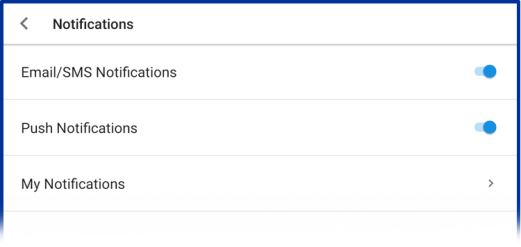
On the Notifications screen, make sure Email/SMS Notifications and/or Push Notifications are enabled with the slide switches at the top of the screen:
-
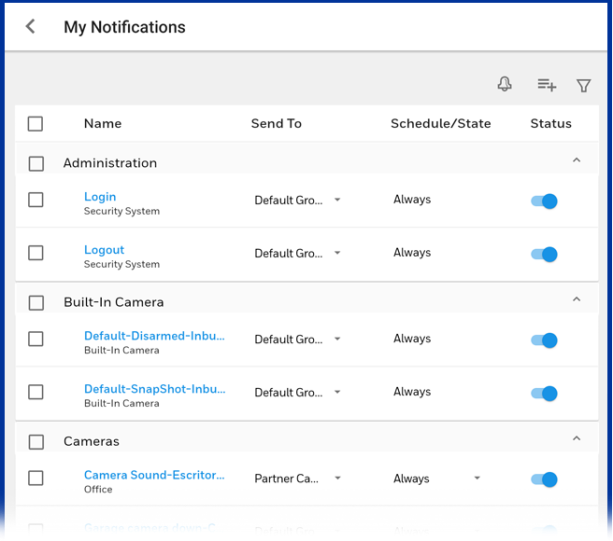
Touch My Notifications. All currently-set notifications are listed:
Touch the  button in the upper right corner of the screen.
button in the upper right corner of the screen. In the New Notification window, select the kind of Notification you want to create. The system displays a list of possible options based on the services you are subscribed to.
-
Security: You can be alerted when the system Arms or Disarms, when an alarm occurs or is cleared, when a door or window is opened/closed, when a sensor has a low battery, has been tampered with or been bypassed. Other triggers include 'Sync' events (when information on the remote service is synchronized with the system panel), loss/restoration of AC power and when the panel itself has been tampered with.
-
Cameras: Be notified of various types of Camera detection events. Includes events such as low battery conditions or when a camera has been tampered with. Also includes motion detection, new recordings prompted by the security system's sensors or certain sounds picked up by a camera's microphone.
-
Video Doorbell: Events such as the doorbell being pressed and motion detection.
-
Devices: Changes in the status of automation devices such as connected switches and door locks. These events include status messages for Trouble conditions and Restore (a Trouble condition or Fault being corrected).
-
Built-In Camera: Compatible alarm panels with an onboard camera can snap a picture of a person who disarms the system at the control panel's keypad. You can also set up a notification to let you know when a Look In is initiated.
-
Emergency Alert: Yoursystem control panel on the premises can alert you when the Remote Service receives tornado and other warnings from recognized sources over the internet. If you choose this option, you will need to specify your postal code on the My Locations page of your account. For information on postal codes outside of North America, see the FAQ European Postal Codes.
-
Administration: These "Sessions"are occasions when your dealer or central monitoring station has full or partial access to your system. This can include Video Alarm Verification (VAV) and Security Professional Access (different variations of this access may be abbreviate to include the phrase Instlr-Full Access).
Select a combination of devices, events and conditions that will trigger the notification you're creating. On each succeeding page, click CONTINUE to create and save the combination of factors you're setting up.
- Note: If you select a disabled sensor, you'll have the option to enable it.
After choosing devices and events, you will choose who receives the notifications and select from a number of scheduling options.
- When satisfied with your settings, click SAVE.
Near the top of the My Notifications window, note these important options to the right of the Name column:
-
Send To allows you to select different sets of system users to be notified when the conditions for a specific notification occur. If you have the right administrator credentials, you can also delete a group, disable it without deleting it, enable it again or send test messages to the group.
-
Schedule/State allows you to define when a specific Notification is sent. For example, you might wish to set up an alert that is only delivered after hours if an entry door at a business opens or closes.
-
Status: This column of switches allows you to enable or disable each type of Notification listed.