 Search Tips
How do I create a Scene on the website?
Things to remember about Scenes:
-
A Scene can only perform a single action, but that action can be programmed to operate multiple devices. For example: You can create a scene that turns on multiple lights in your home and raises the thermostat.However...
-
To undo the changes made when the scene runs, a separate scene is required to reset those changes. In other words, a separate scene is needed to turn off lights that were turned on by the first scene or re-lock doors that were unlocked by the first scene, etc.
-
Scenes send specific commands to your devices. For example, if a light switch in your system is already on when it receives the command "Turn On", nothing will happen. In other words, that switch will not mindlessly toggle to its Off state. Devices that are compatible with
Scenes can be started or triggered in three ways which are explained below. This example shows creation of a clock and calendar-controlled scene.
If you have an account with more than one Location, start by selecting the Location where you want to use the Scene you're creating. If your system has only one Location, start with #2.
1. On the Security page, use the Locations dropdown at upper right to select where the Scene will be used.
2. On the left side of the screen, select Scenes. The Scenes menu appears.
3. Click the.png) button in the upper right part of the screen.
button in the upper right part of the screen.
4. On the next screen, name the scene and click CONTINUE. (See the notes at the end of this article for suggestions about naming Scenes.)
1. On the Security page, use the Locations dropdown at upper right to select where the Scene will be used.
2. On the left side of the screen, select Scenes. The Scenes menu appears.
3. Click the
button in the upper right part of the screen.4. On the next screen, name the scene and click CONTINUE. (See the notes at the end of this article for suggestions about naming Scenes.)
5. Next, choose the type of trigger that will run (start) the scene:
-
During a scheduled time: This will open a page of clock/calendar settings so you can choose the exact day and time the scene runs. Remember that each time/date-based scene only initiates a single action, starting at a specific time/date. You will be setting a start time, not a start time and an end time.
-
Time setting options include Sunrise and Sunset, as an alternative to fixed morning and evening times you set manually
-
If the 24-hour Time Format is selected for the location, the AM and PM options will not appear.
-
-
Triggered by a device: Choose this option if you want the scene to be triggered by a change in the state of another piece of hardware in your system, like the security system being disarmed.
-
Manually: This kind of scene is handy for actions like turning off all the lights when you're ready to start a movie night, for example.
NOTE that any scene can be run manually, regardless of the type of trigger you select.
6. For the purpose of this example, select During a scheduled time.
7. Set the time and day(s) when you want the scene to run.
8. Click CONTINUE to save the time/date settings and move on to the next step, where you will choose the devices that will be controlled by the scene.
9. Click the  next to the name of each hardware category to expand the view.
next to the name of each hardware category to expand the view.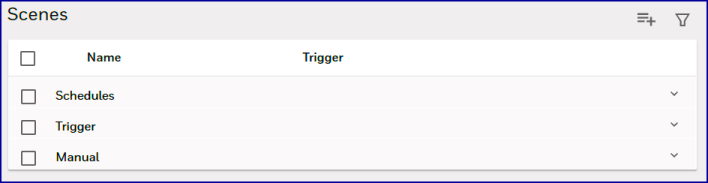
10. Click the scene's name for a summary of the scene's trigger type and the devices/systems involved.
11. Click SAVE. The website confirms that it is saving your changes.
Next, the main Scenes screen returns. Note that the display may appear 'collapsed' again. If it appears this way, click the buttons to expand each category.
buttons to expand each category. NOTES
-
It's a good idea to give your scenes simple, meaningful names.For example, in an emergency, you don't want to be on the phone with the babysitter, struggling to explain a jokey name you've given to the lights on the patio.
-
Scenes on the website are grouped by the type of trigger that starts them. Within these categories, they're listed alphabetically. Entries beginning with numbers follow those listed alphabetically.
-
You can take advantage of the way numbering is handled to make life a little easier. Let's say you've created two scenes that you naturally think of together:
-
-
One is Evening ON, which turns on exterior lights at Sunset on weekdays.
-
The other is Morning OFF, which turns off those lights at Sunrise.If it makes you crazy that they are listed like this...
 ...You can begin a scene's name with a numerical character to make the displayed list clearer:
-