 Search Tips
How do I watch my cameras live? How do I record from them?
You can stream live video and initiate recordings from your cameras on the mobile apps. On the website, you can monitor selected compatible cameras and initiate recordings from any connected camera.
Also see the FAQ What does the Privacy switch do?
Streaming live video on the mobile apps:
-
If your account has more than one Location, choose the one you want to look in on. (The location selector appears at the top of the home screen in the apps.)
-
iOS: At the bottom of the screen, touch Cameras. (If you don't see the Cameras icon, touch the
 button.)
-
Android: At the top of the screen, touch CAMERAS.
-
-
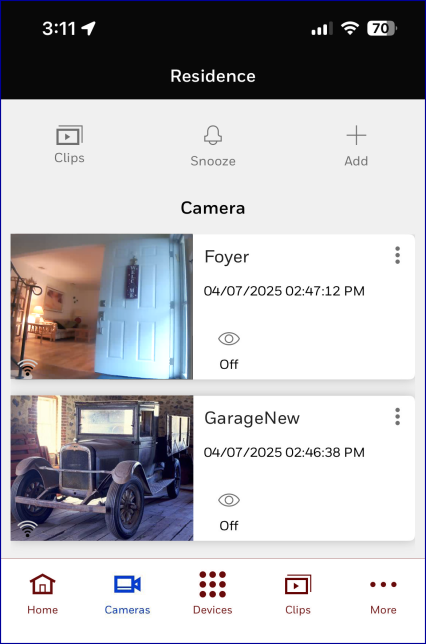
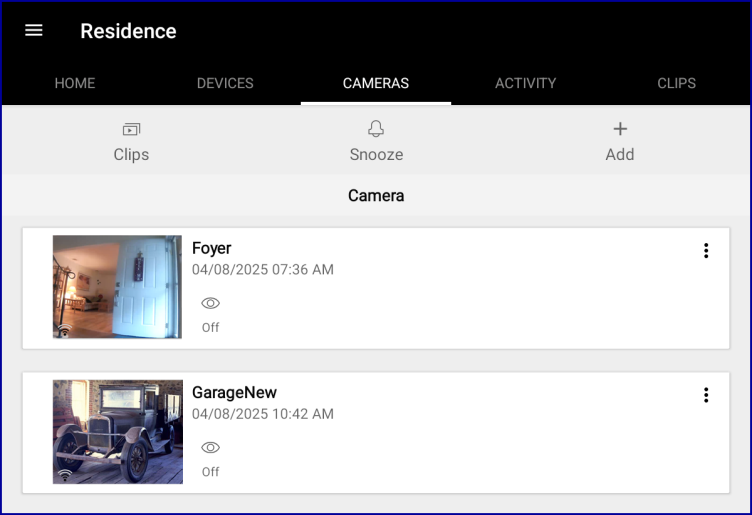
The Cameras screen appears (iOS at left, Android at right):
-
Note the Wi-Fi signal strength indicator in the lower-left corner of each picture.
-
Remember that the thumbnail images on this screen are samples of recently captured video and not a live picture.
-
Touch the thumbnail of the camera you want to watch. The live video stream opens in landscape orientation, so you'll probably want to rotate your phone appropriately
-
The live feed is displayed for about 90 seconds and concludes with the option of restarting the stream.
There are several options when you're watching live video; they can vary with the type of camera you're monitoring.
-
Touch x on the live video window to close it
-
Touch and hold
 to speak to persons near the camera
-
Touch
 to capture a still image from the live video stream
-
Touch
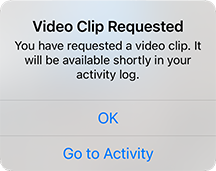
 to record a 30-second video clip. Confirmation appears:
-
Touch OK to dismiss and continue saving the clip, or
-
Touch Go to Activity and a list of clips appears.
-
Press
 to play a clip or
-
Press
 to download it to your device
-
Streaming live video on the website:
-
If your account has more than one Location, choose the one you want to look in on.
-
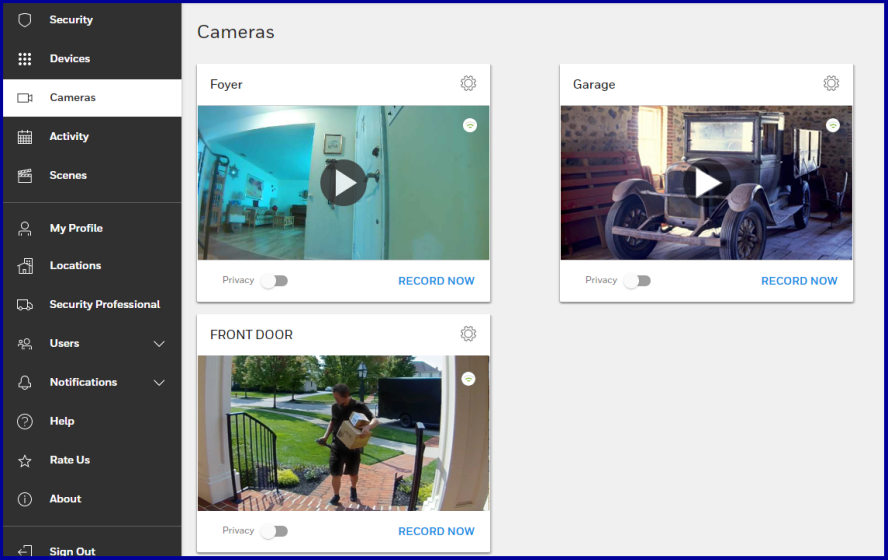
At left on your screen, click Cameras . The Cameras page appears:
-
Note the Wi-Fi signal strength indicator in the upper-right corner of each picture.
-
Remember that the preview images on this screen are samples of recently captured video and not a live picture.
-
Click the Play button on the preview of the camera you want to watch.
-
The live feed is displayed for about 60 seconds and concludes with the banner Your camera's live video stream has stopped.
Recording a clip from a camera:
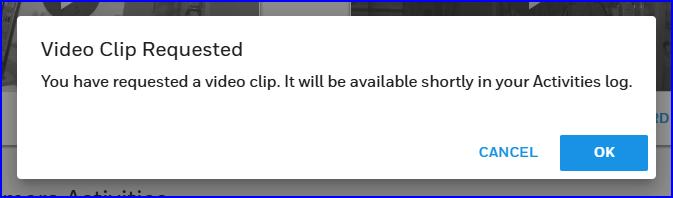
At lower right on each camera window, you can click RECORD NOW. The system displays an acknowledgment:
-
Scroll down to Today's Camera Activity; the clip you recorded will appear at the top of the list about a minute after you started the recording.
-
Clips recorded manually by a user are labelled "Recorded" to distinguish them from clips triggered automatically by sound or motion detection.
-
Use the Play button to view the clip.
-
You can download clips from the Today's Camera Activitieslist on the Cameras page or from the Activity. Video events on these lists have a Play button and additional options available via the button on the right.
-
- The Hide activity option removes the event and its associated clip from the list.
-
Take note of where downloaded files are being saved on your computer. When opened, these files will play in the default program on your PC or Mac.