 Search Tips
What does "Camera Activities" mean?
Please note that Camera Activities on the Remote Services website refers to the same feature as the Clip List  on the mobile apps.
on the mobile apps.Please note that Camera Activities on the Total Connect website is NOT available on the mobile apps. On the mobile apps:
-
On the iOS app, tap Activity
 to see your videos.
 -
On the Android app, tap
 or touch the text button ACTIVITY at the top of most screens.
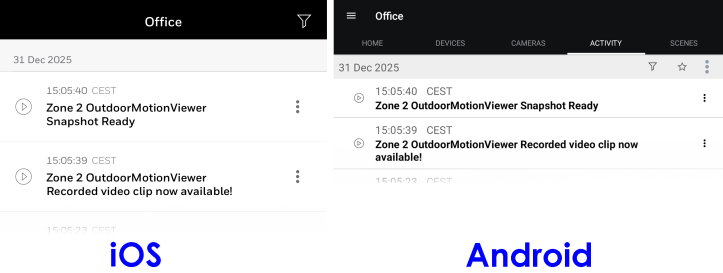
ALSO NOTE that Camera Activity is different from the service's listing of all system activity, as seen below:
On the website:
In the first illustration, the Cameras page displays all instances of motion and sound detection by your
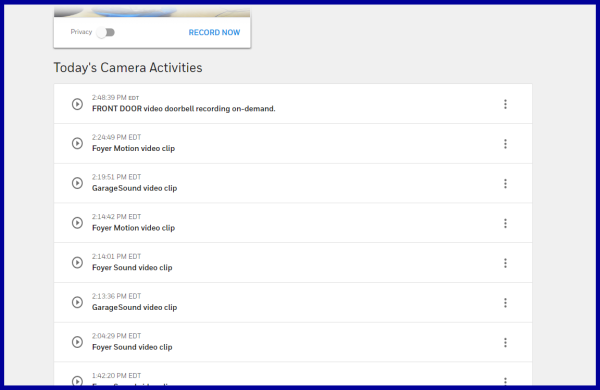
Above: Camera Activities listed on the Cameras page of the website
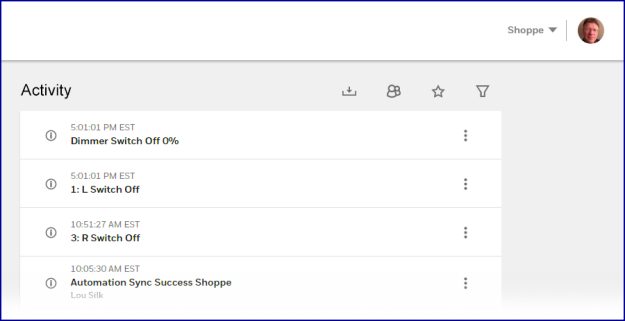
In the second illustration, the Activity page displays all activity, system-wide, including Arm and Disarm events, along with motion/sound detection events and clip/still recordings from your cameras. For more information, see the FAQ What's in the Activity log? (And can I sort or filter it?)
Below: All system activity (events) listed on the Activity page of the website
On either the Cameras or Activity page, click the  button on the right side of the screen for these options:
-
Play video: Plays the video in a pop-up window
-
Download video: Saves the video clip to your computer
-
Hide activity: Removes the selected item from the list without deleting the video clip or snapshot itself.
Activity from the new VX1 Video Doorbell includes a fourth option:
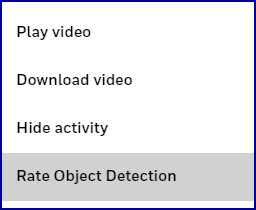
Clicking Rate Object Detection opens a dialog box that asks you to confirm the camera's analysis of what it detected (a person, a package, an animal, etc.).
On the apps:
- iOS: Touch
 on the navigation bar at the bottom of the screen.
 - Android: Touch CAMERAS on the navigation bar at the top of the screen.
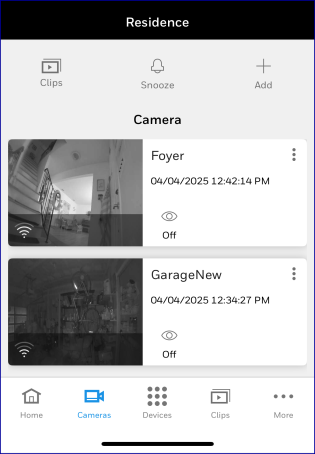
- At the top of the Cameras screen, touch the Clip List button at upper left. The most recently-recorded clips from your cameras are listed:
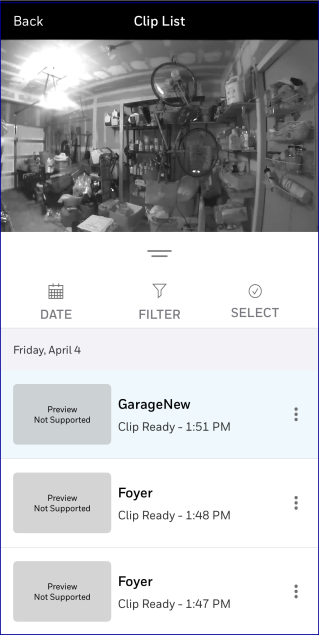
- For clips from most compatible connected cameras, touch the button on the right side of the screen for the option to download the clip to your device's photo library.
- For clips from the VX1 video doorbell, the button offers the options to delete the clip or download it.
- Clicking Rate Object Detection on a VX1 clip opens a dialog box that asks you to confirm the camera's analysis of what it detected (a person, a package, an animal, etc.).
- For clips from the VX1 video doorbell, the
- Touch the filter button
 button_30x28.png) to open a page of filter options to sort for the kind of activity you want to display
to open a page of filter options to sort for the kind of activity you want to display