 Search Tips
What's in the Activity log? (And can I sort or filter it?)
Nearly everything that happens in your system is recorded in the Activity Log or the Admin Log. These entries are sometimes referred to as events or Activities. The logs offer a variety of sorting and filtering options.
Please note that the terms Activity, Activities and Events are used interchangeably in these FAQs.
The Activity Log includes:
- Arms/Disarms
- Routine sensor occurrences like Open and Close events are logged if they are set to initiate Notifications (see the FAQ What are Notifications?for more information)
- Trouble and Fault conditions in door/window sensors, motion sensors or other hardware components. (Fault conditions include an open door or window and the Trouble designation includes low batteries or tampering.)
- Changes to automation devices.
- Video recordings and still image captures triggered by your system's sensors or motion/sound detection by the cameras themselves. Typically, these recordings and images can be viewed/played directly from the Activity list. (Click
 on the right side of the screen to view or download the file.)
- Includes recordings/stills triggered when the cameras themselves detect motion or sound
- Includes still photos of the person at the control panel taken when the system is Disarmed using the panel itself (on selected panels only)
- Information being updated and matched between your system and the Remote Service (Sync Panel Data and User Sync operations).
The Admin Log includes:
- Log-ins and log-outs
- System access being granted to your dealer/security professional
- Creation of new users
- Any changes to users’ information, including password updates
Note: Depending on the version of Remote Services you're using, the contents of the Admin log may be labeled "Other Activity".
To access logs on the website:
If your system includes more than one Location, select the Location whose events you want to see.
-
At upper right, select the Location whose Activity history you want to see (if your account has more than one Location)
-
Below the Location dropdown are export, filtering and sorting controls:
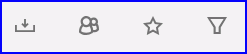 (the
(the.png) button at left is for exporting [downloading] logs)
button at left is for exporting [downloading] logs)For the Admin log, click the
 button.Click the button again ("Show live events") again to return to the regular Activity Log.
-
The
 button selects all events marked as Favorites (see the FAQ How can I mark an Event as a Favorite?)
 -
Click the
 button.png) button to filter by type of event or date and time
button to filter by type of event or date and time-
Filtering byDate & Time presents options for seeing entire days or choosing a time/date range. If you switch off the All Day option, you can select a precise time range in hours and minutes.
-
You can check or un-check Show Hidden Events to display or omit entries that you've marked Hide event (see the FAQ Can Events Be Hidden Or Deleted?)
You can delete individual filters without starting over by clicking

-
-
To access logs on the iOS app:
If your system includes more than one Location, select the Location whose events you want to see.
If Activity isn't one of the navigation options at the bottom of the app screen, click  .
.
All of the filtering options described above are condensed into a list offered by the button.
To access logs on the Android app:
If your system includes more than one Location, select the Location whose events you want to see.
Locate Activity on the navigation bar near the top of the screen.
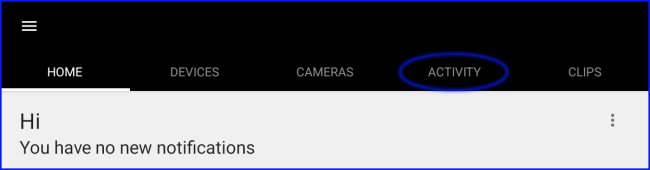
Touch Activity and a list of events is displayed.
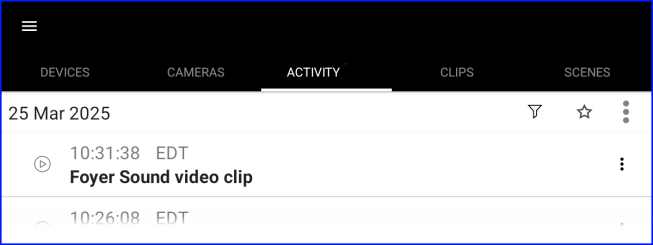
Use the Filter button as discussed above or choose Favorites with the button. Click the button for Admin Logs.